

Posted by Michael Dance on August 1, 2026 17:04
Status: Coming in 2.6.0 — not yet released. The steps below show exactly what to expect once it ships.
Passkeys are a simpler, more secure way to log in — no password required. Unlike passwords, passkeys are resistant to phishing, credential stuffing, weak or reused credentials, and password database breaches. They're stored securely on your phone, your computer, or a compatible hardware security key such as a YubiKey.
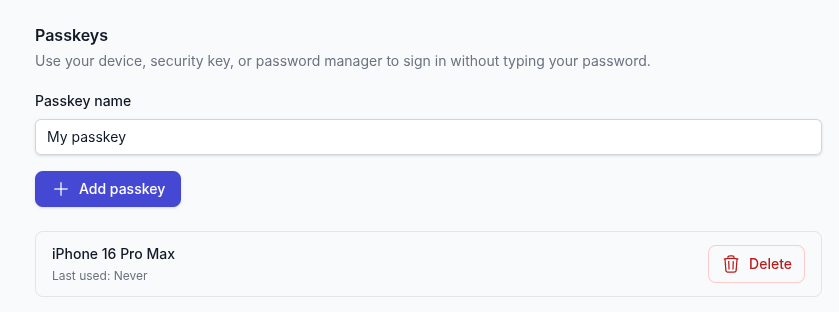
Add a passkey — Go to your personal settings > 2FA Settings, enter your password, then find the passkey section. Give it a name and click "Add passkey".
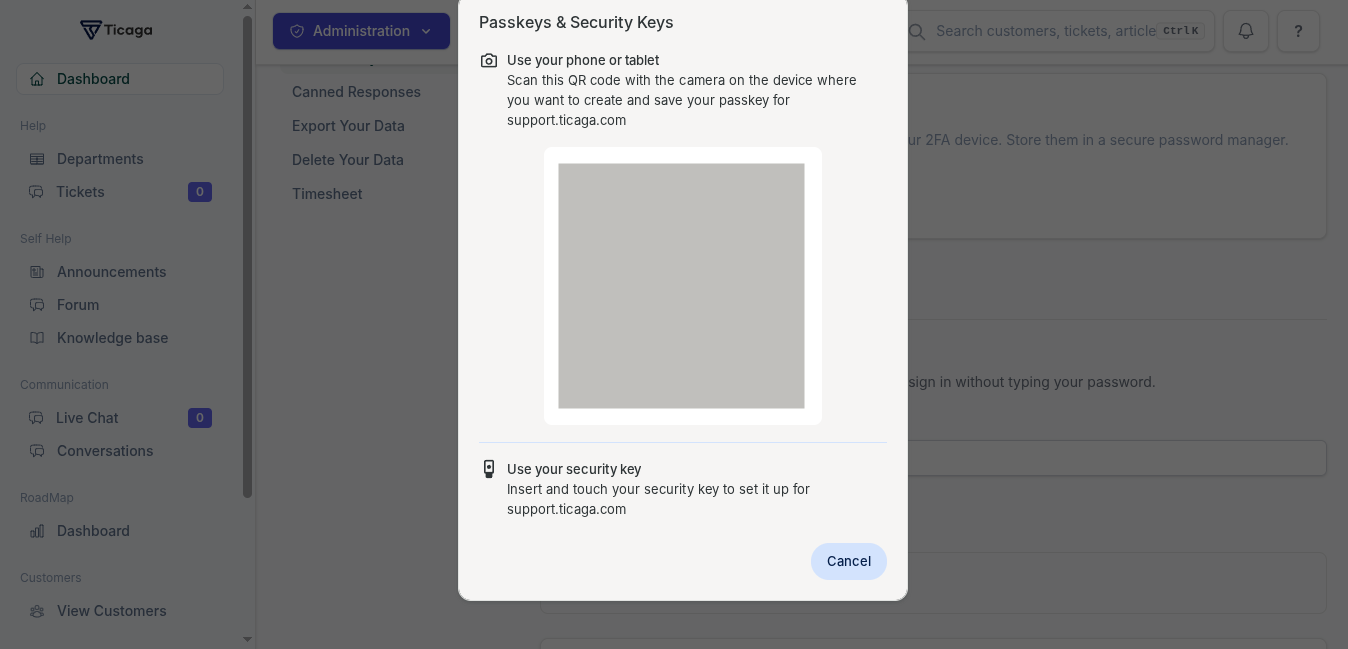
Register your device — Scan the QR code with your phone, or insert your YubiKey into a USB port.
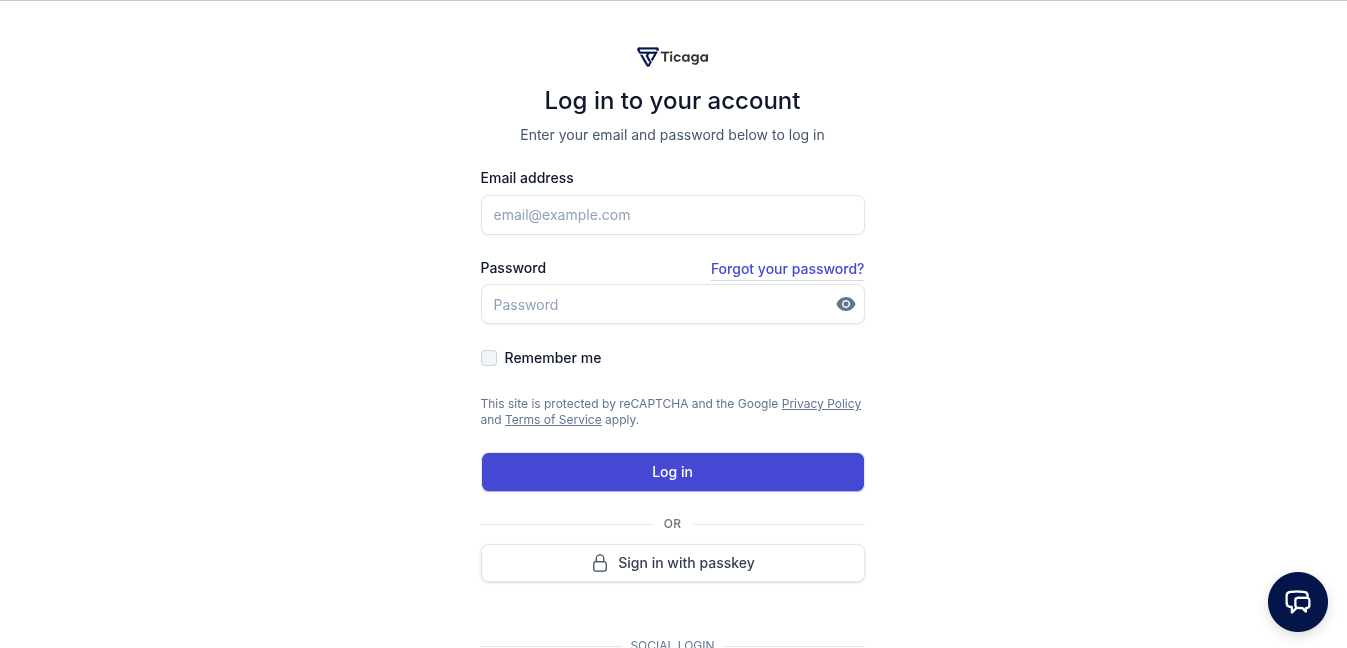
Start the passkey sign-in — On the login page, click "Sign in with passkey".
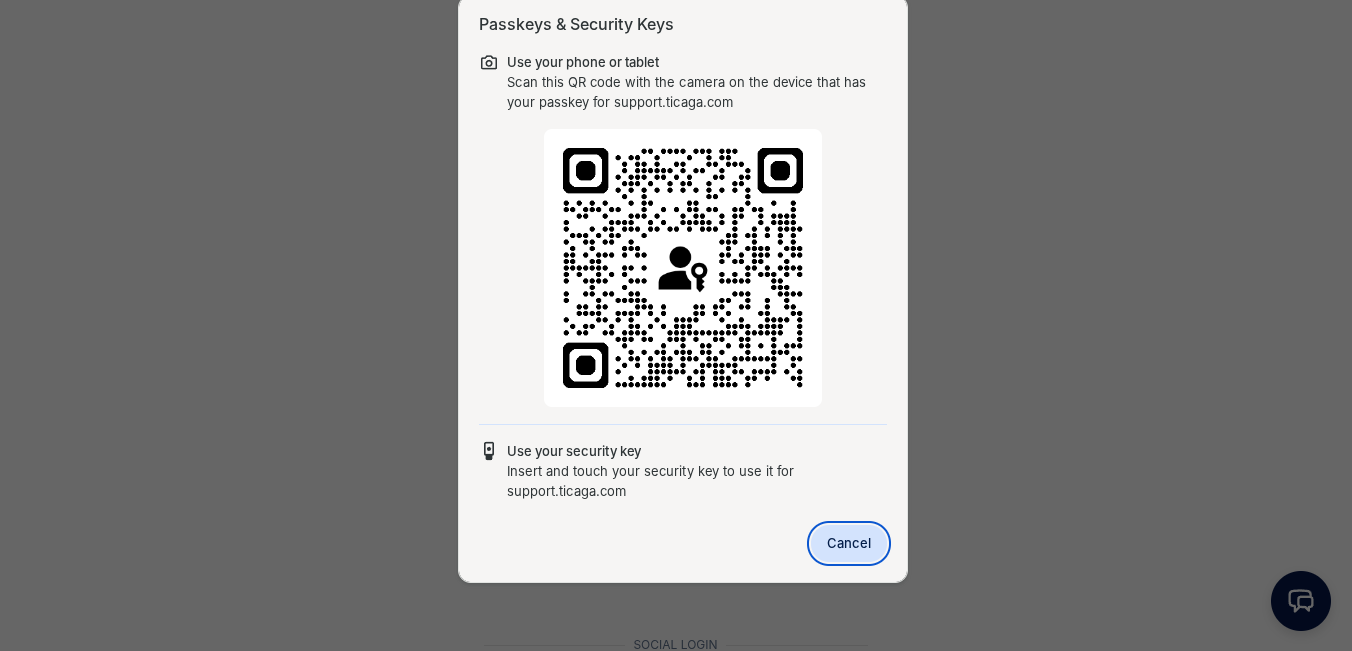
Authenticate — Scan the QR code, or insert your YubiKey.
Enter your PIN — YubiKey users will be prompted for their PIN. This step is skipped for phone or computer authentication.
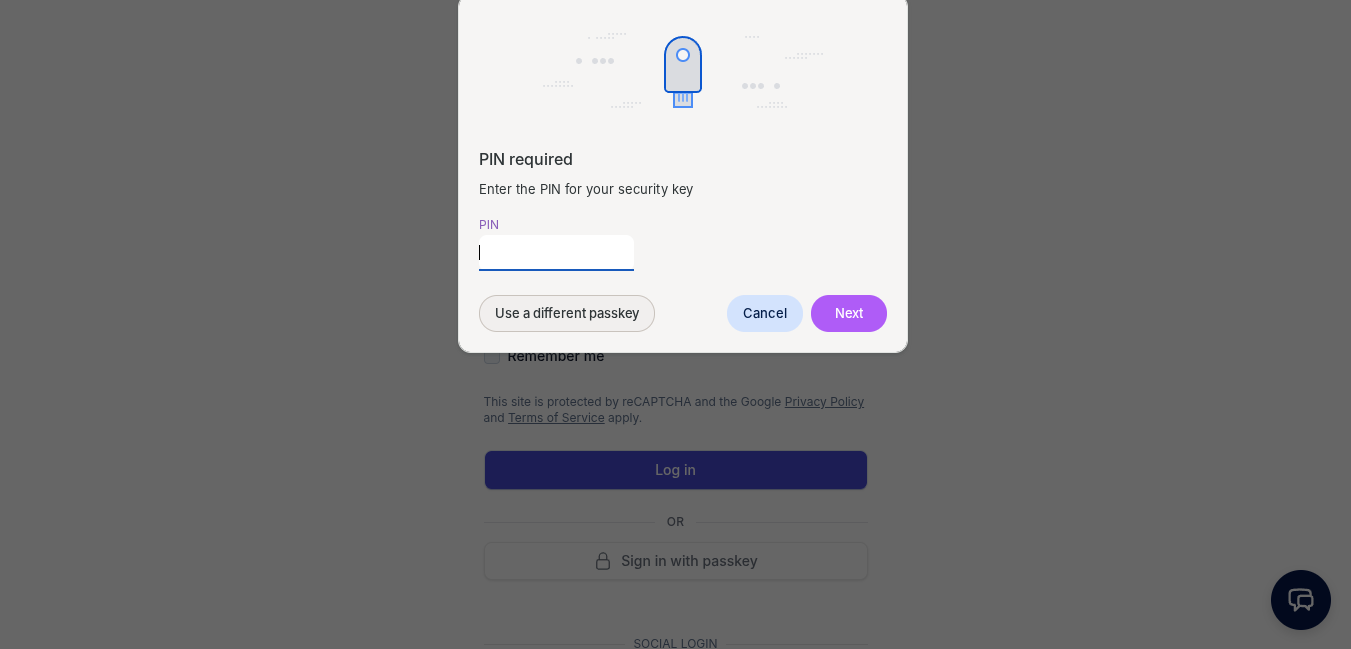
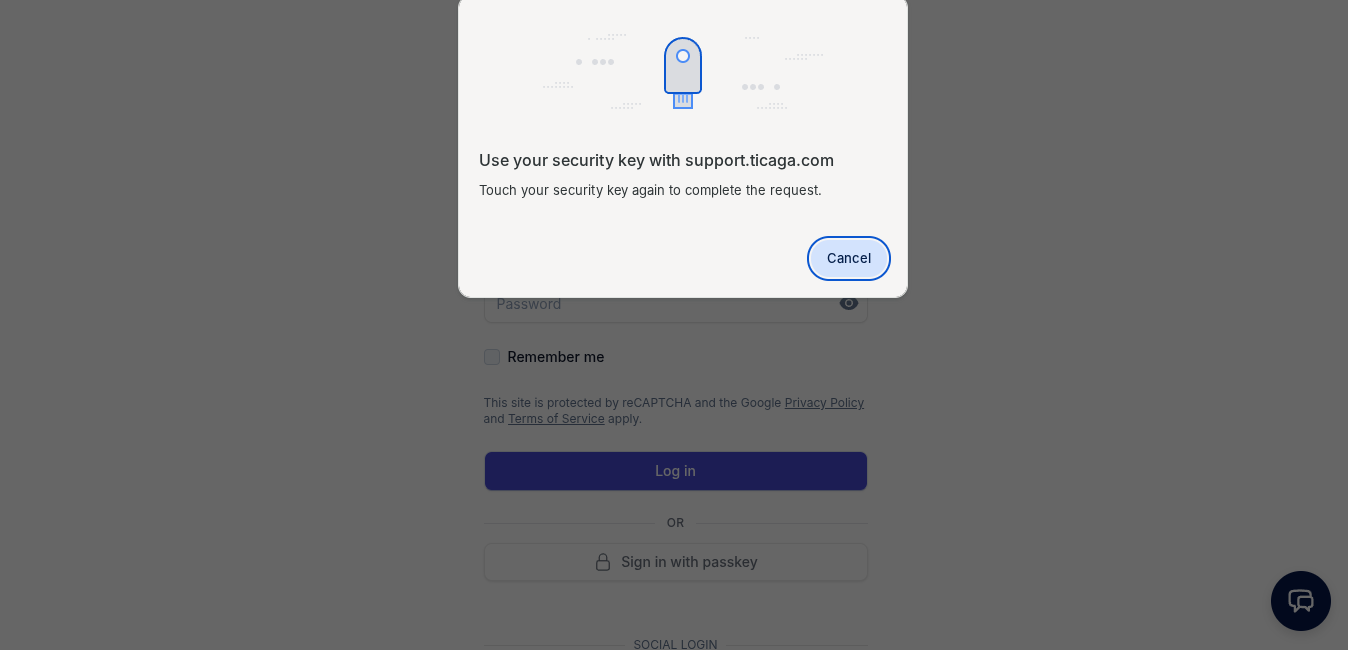
Confirm with a touch — Touch your YubiKey to confirm it's really you.
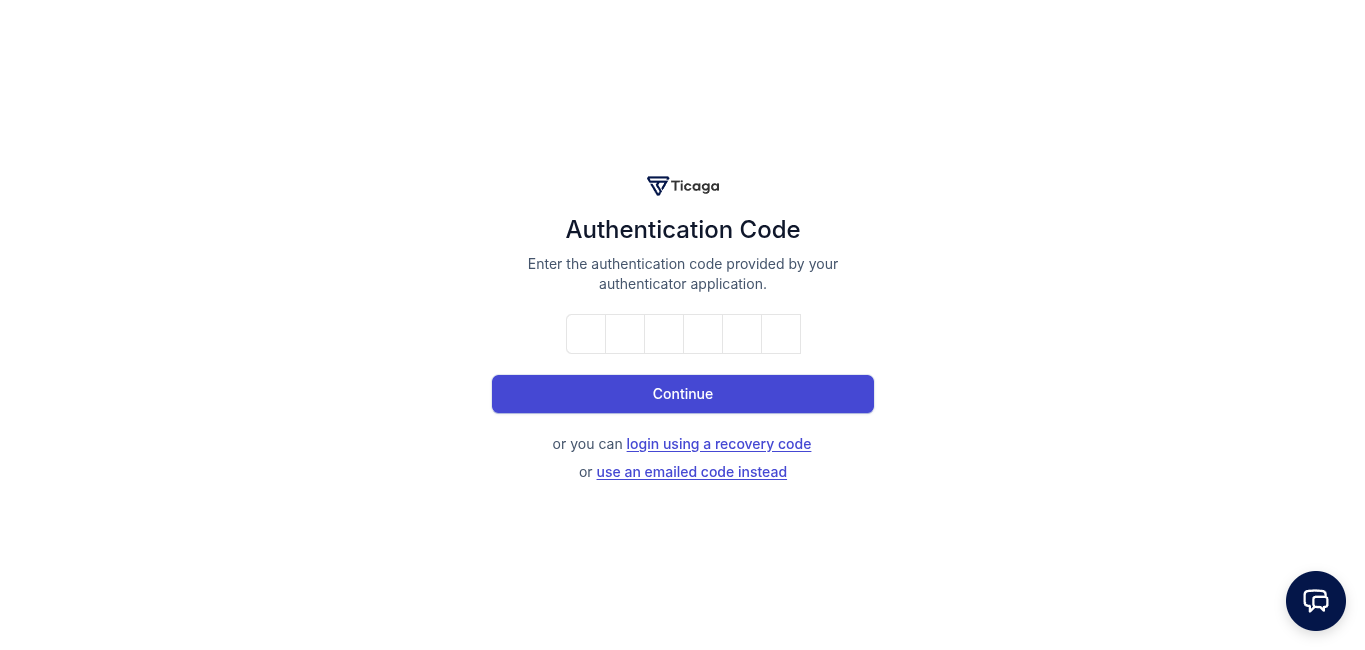
You're in — Depending on your account settings, you'll land straight on your dashboard or be prompted for two-factor authentication.
That's it — secure, and no password in sight.
Version 2.6.0 is being released soon. Have feedback on passkeys? Let us know — we'd love to hear how it fits into your team's workflow.
