

Posted by Michael Dance on May 11, 2026 12:57
We've all been there — you're deep in work, a support ticket comes in, and by the time you notice it, your customer has been waiting longer than they should have. Checking a dashboard constantly isn't a workflow, it's a distraction. So with Ticaga 2.4.0, we're introducing Webhooks — and they change everything about how your team stays informed.
In plain terms, a webhook is a way for Ticaga to automatically tap another application on the shoulder and say, "Hey, something just happened."
When a ticket is created, updated, closed, or assigned, Ticaga can instantly push that information to any service that accepts webhook payloads — Slack, Discord, Microsoft Teams, custom dashboards, automation tools like Zapier or Make, or your own internal systems. No polling. No manual checks. Just real-time updates delivered exactly where your team already lives.
If your team already uses Discord for internal communication (and a lot of teams do), you can have Ticaga sending ticket notifications into a channel in minutes.
We've put together a step-by-step guide that walks you through the whole process — creating a Discord webhook URL, pasting it into Ticaga, and choosing which events to listen for:
Setting Up the Webhook for Discord →
Once you're set up, your Discord channel will start receiving updates that look something like this:
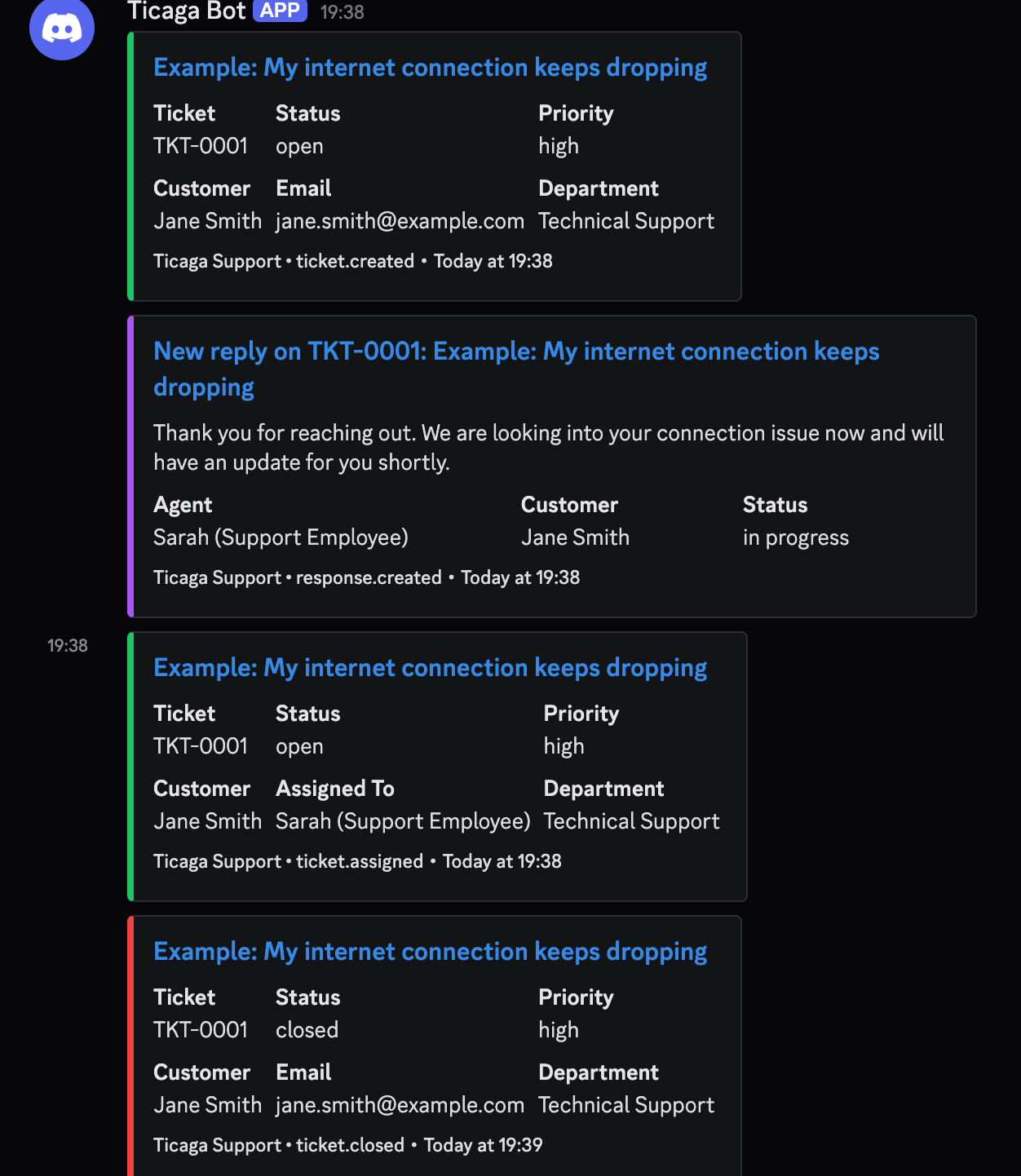
Clean, clear, and right where your team is already looking. No more alt-tabbing to check if something came in.
Discord is a great starting point, but webhooks aren't limited to one platform. Any service that accepts an HTTP POST request — Slack, Teams, a custom internal tool, a Zapier workflow — can receive Ticaga events. If it has a webhook URL, Ticaga can talk to it.
Ticaga's webhook system fires on the moments that matter:
Webhooks are coming in Ticaga 2.4.0. After you've updated, simply head to Administration → Settings → Webhooks in your dashboard to add your first endpoint.
And if you're starting with Webhooks, our guides are ready and waiting:
Read the Discord setup guide →
As always, if you run into anything or have questions, our support team is here. Open a ticket and we'll get you sorted.
