

To get started, go to Administration → General Settings → Webhooks, then click Config Slack:
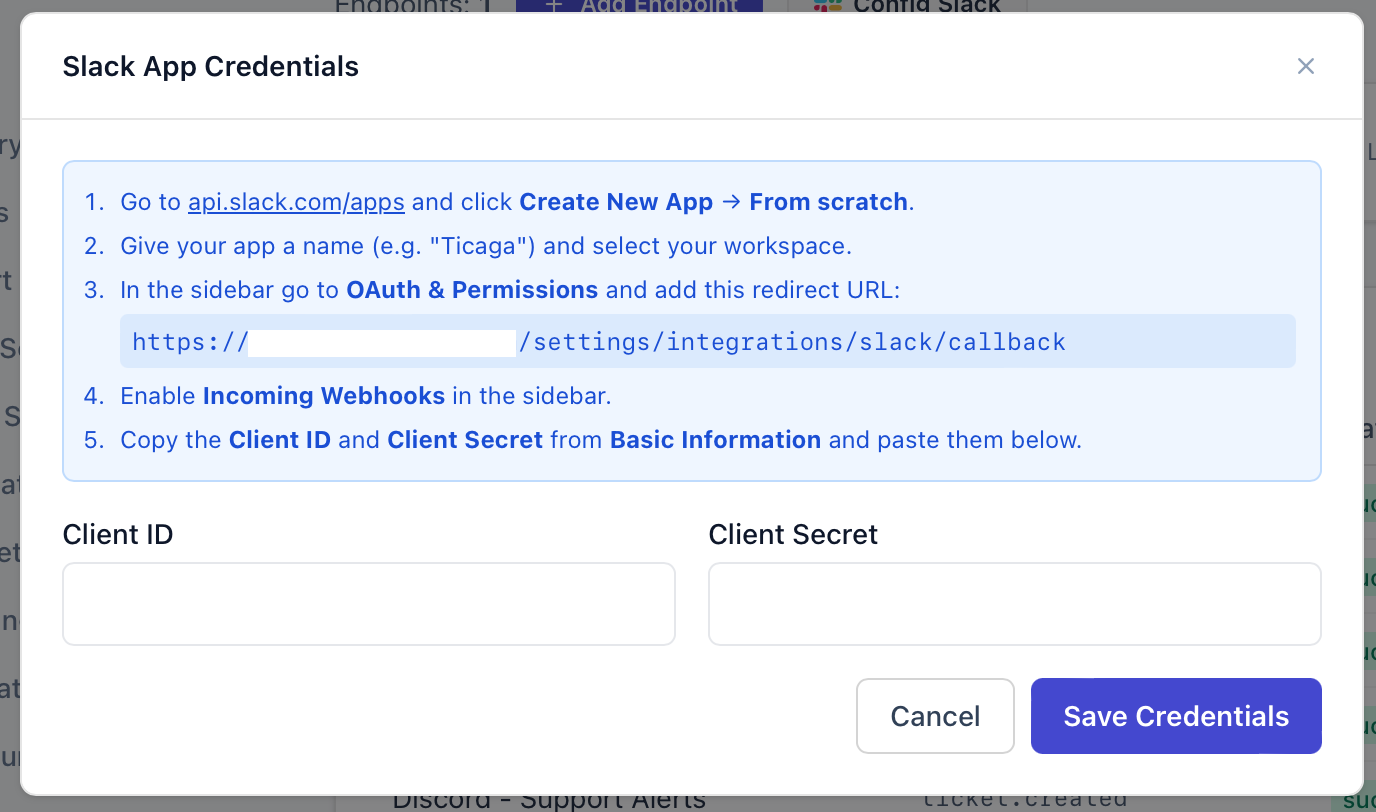
 Follow the instructions on the modal:
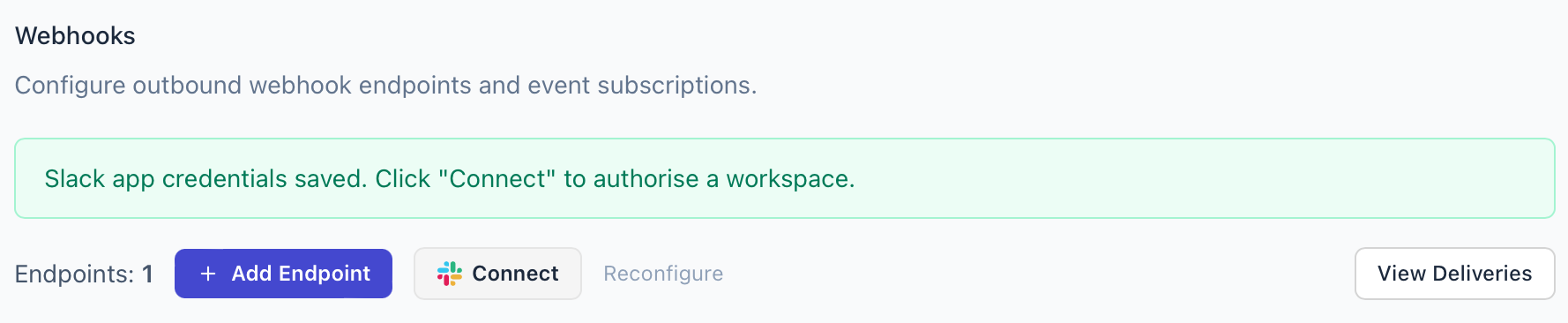
After completing those steps, you’ll see the Connect button:
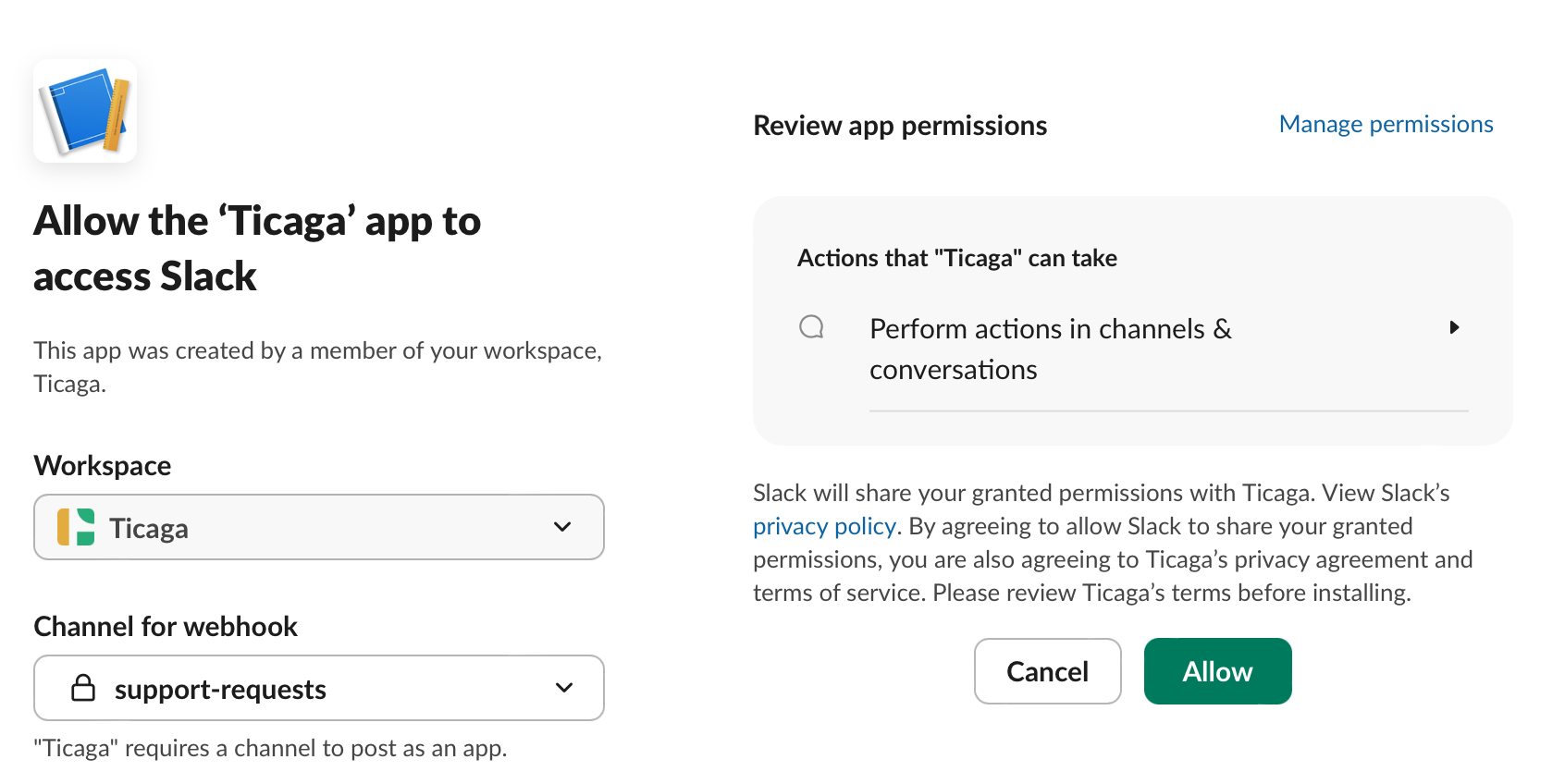
You'll be redirected to Slack to choose the Slack channel where updates should be posted:
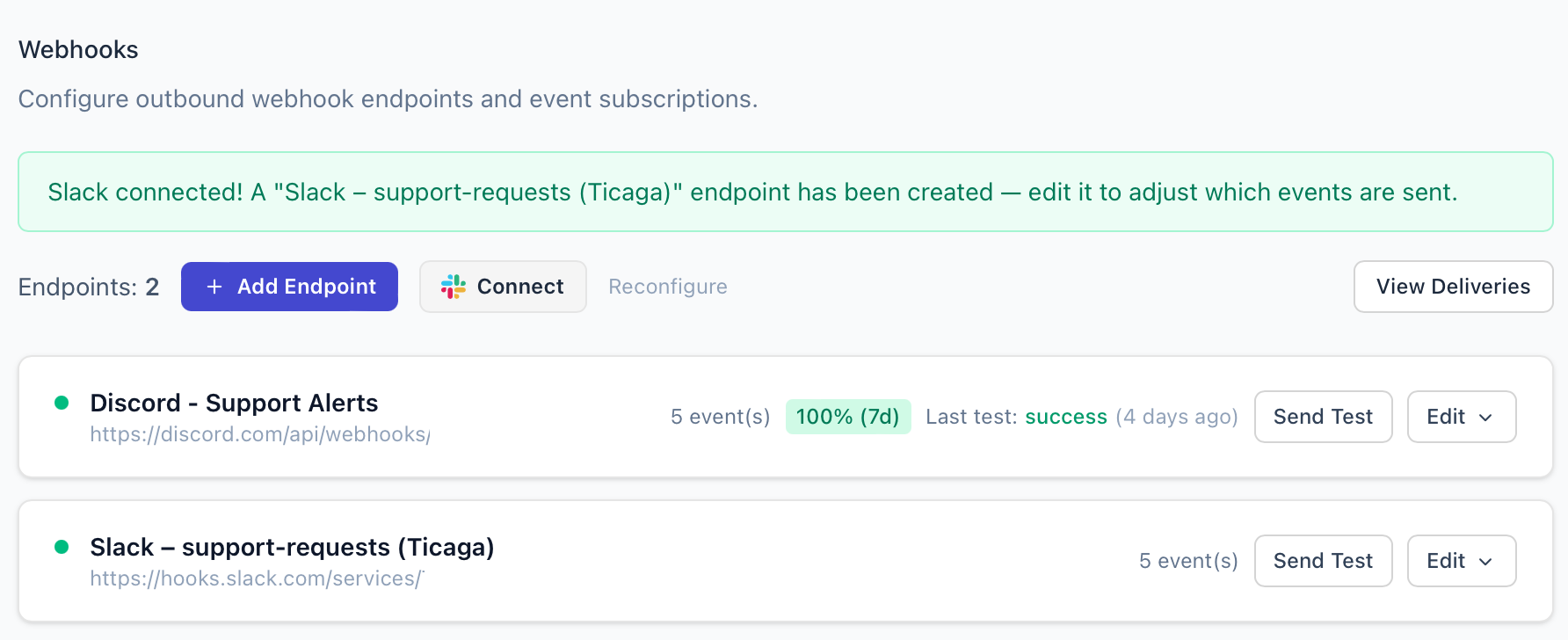
That's it, you'll get returned to Ticaga and the default events will be enabled and configured for you. You can edit, disable, or add more events at any time:
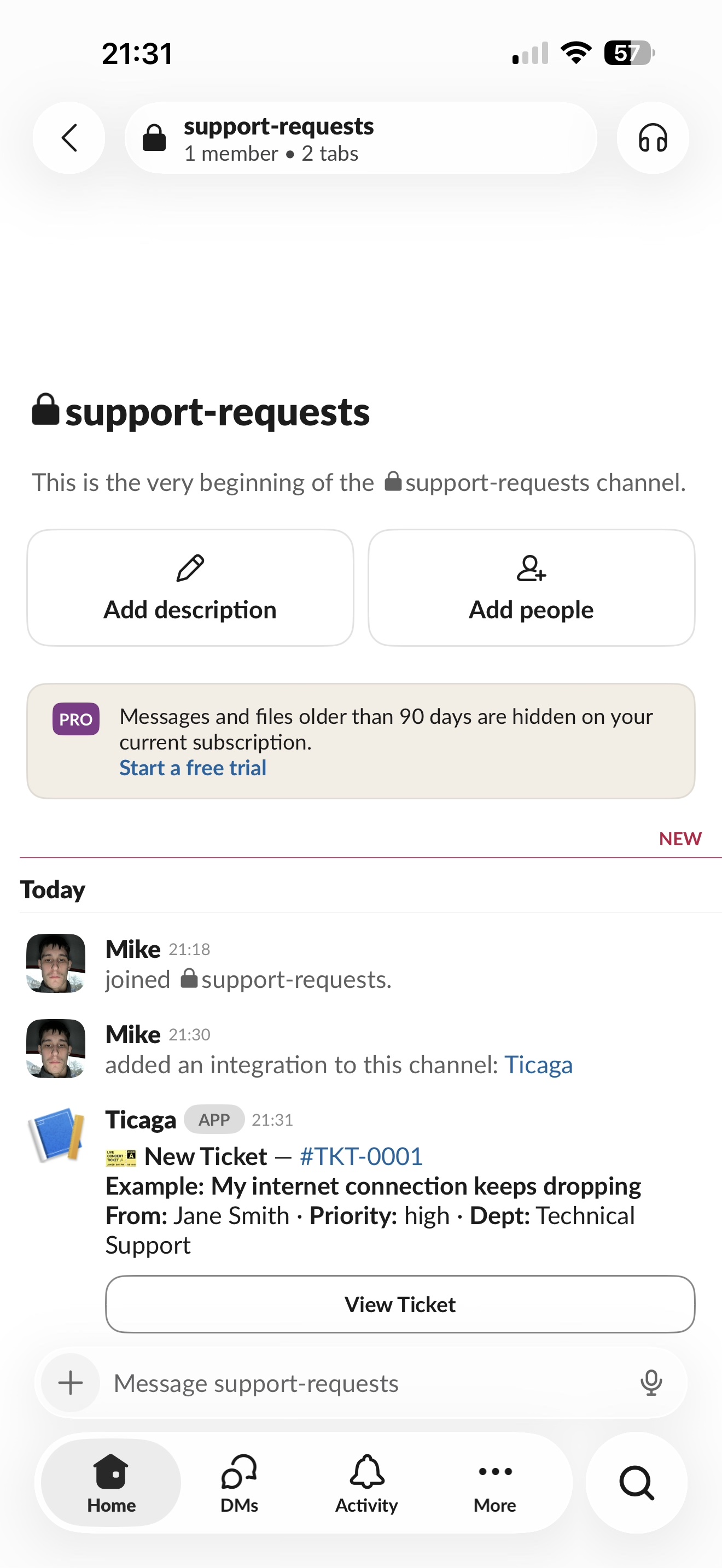
New tickets and updates will then show up on your chosen Slack channel:

Author
Michael Dance
My name is Michael and I'm the Owner and founder of Ticaga Ltd.
Feedback loop
Be the first to rate this guide.
Article snapshot
To get started, go to Administration → General Settings → Webhooks, then click Add and you’ll see this form: Open the settings for the Discor...
Go to your personal settings > 2FA Settings > Enter your password. You'll then see the passkey section, set a name and click "Add passkey". S...
When a visitor starts a chat, Ticaga can display their details — name, email, company, and more — directly in the agent's Customer Details panel. Yo...