

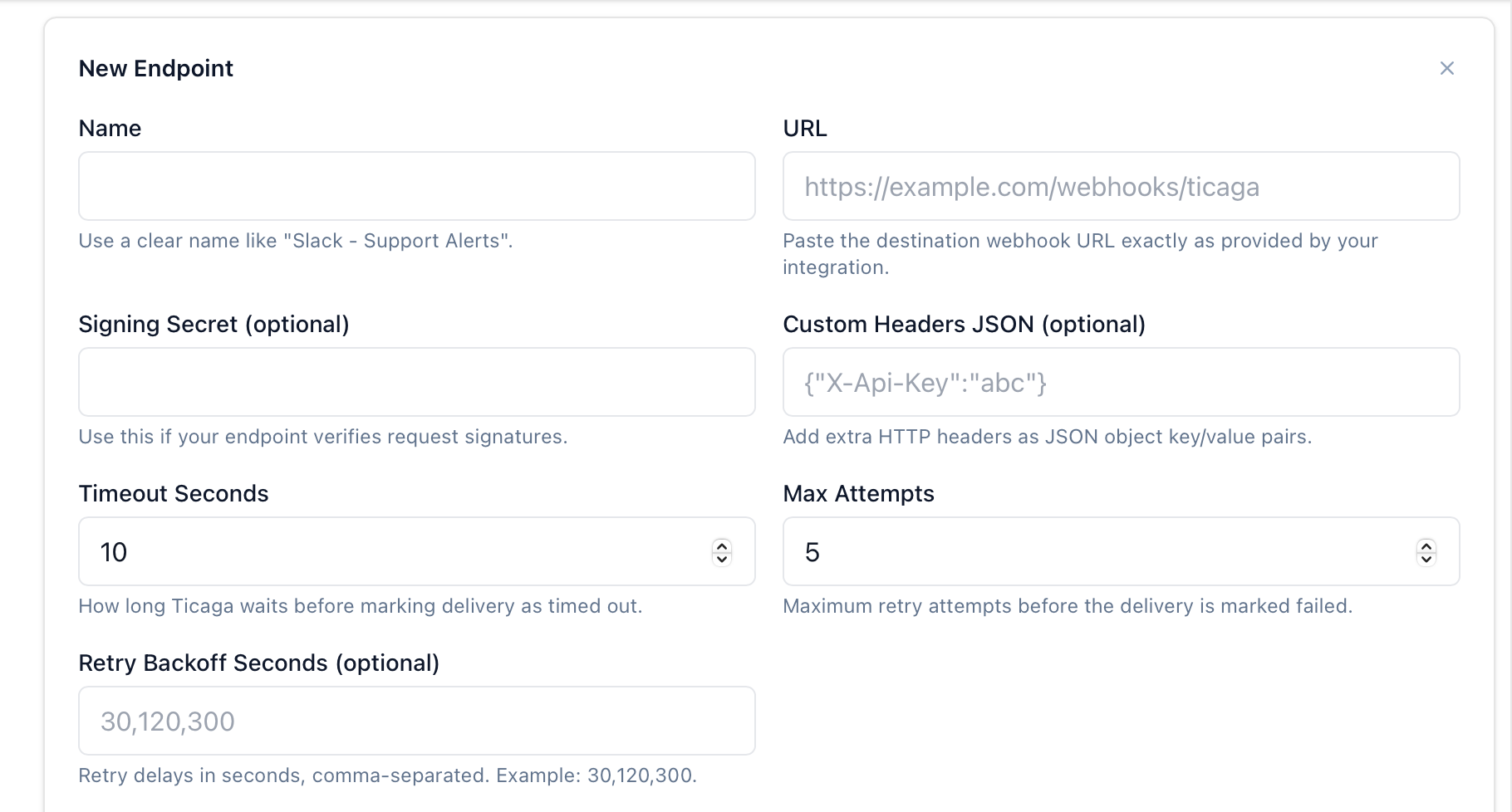
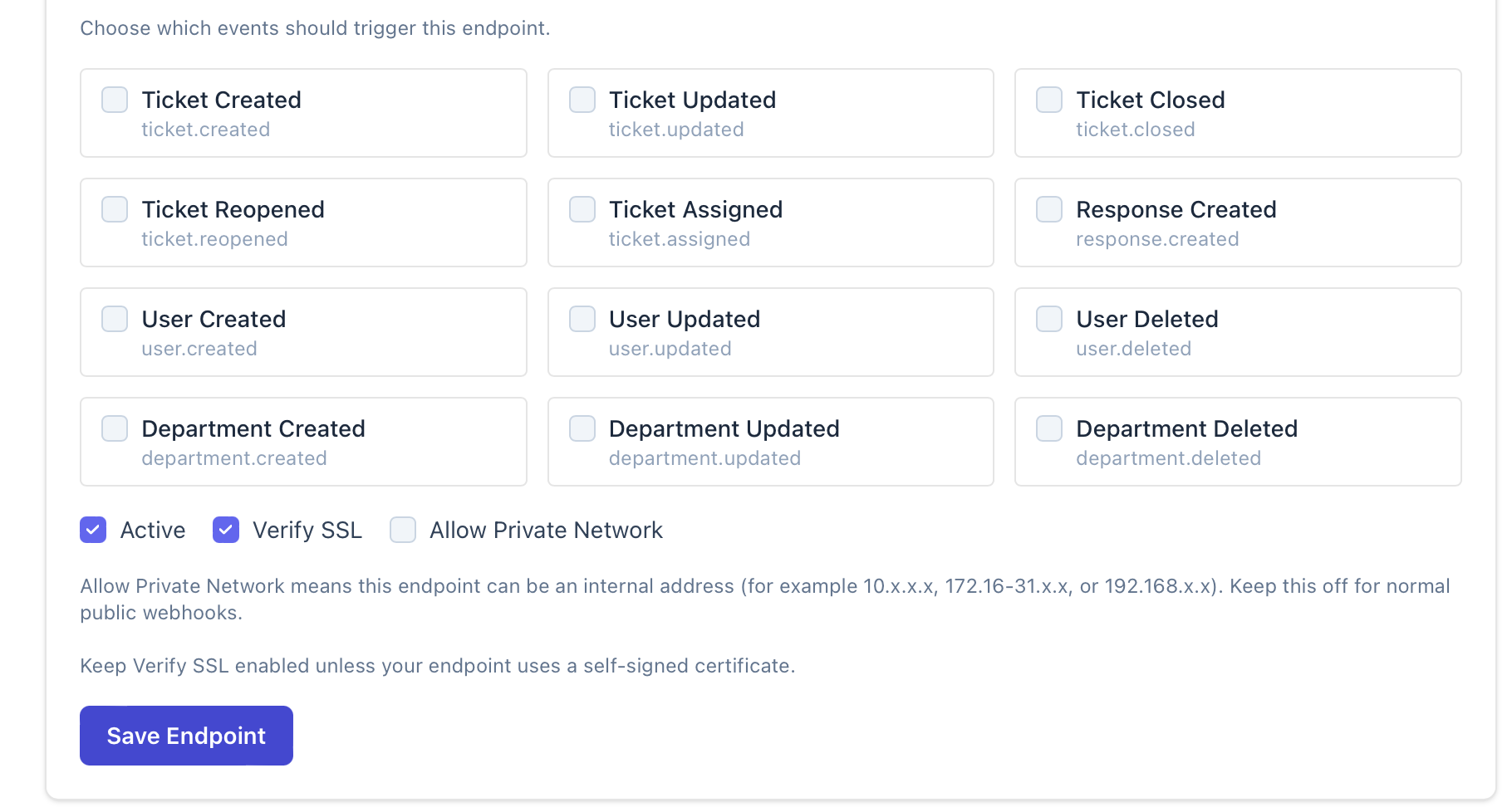
To get started, go to Administration → General Settings → Webhooks, then click Add and you’ll see this form:
Open the settings for the Discord channel where you want Ticaga events to appear:
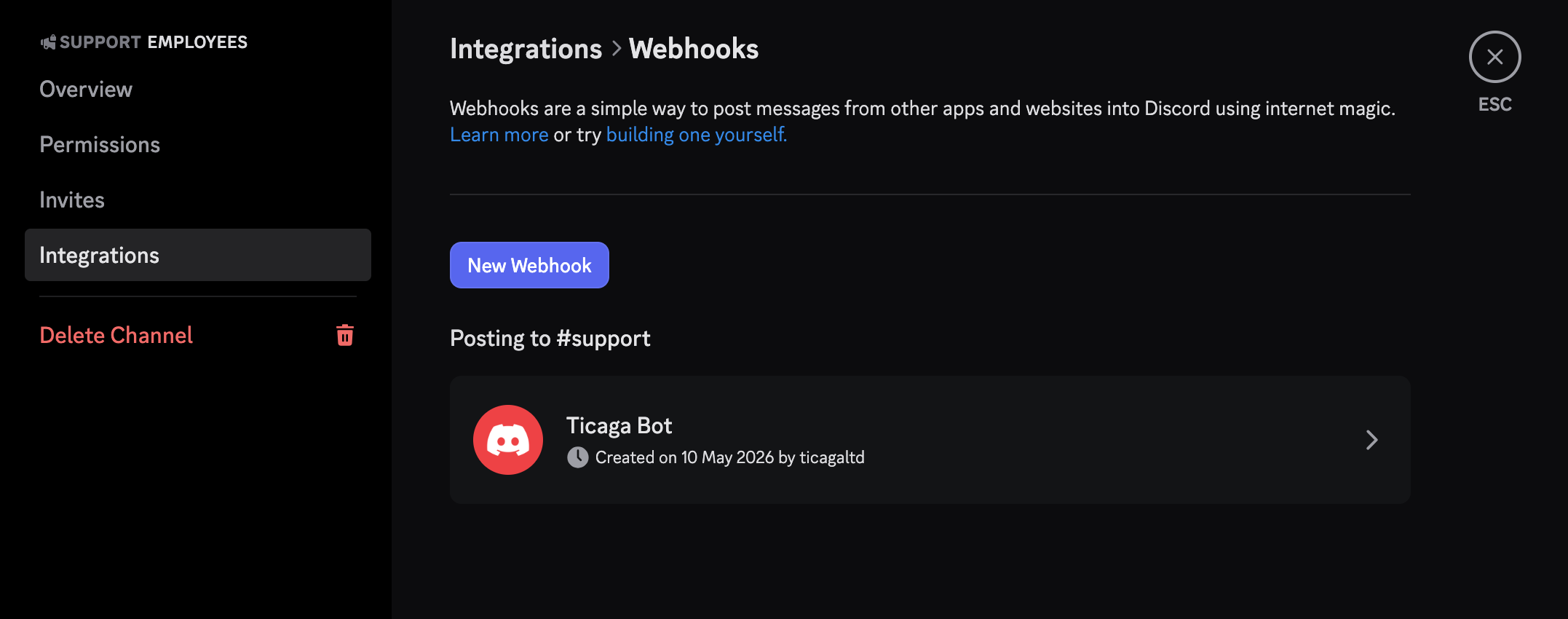
Go to Integrations → Webhooks and copy the webhook URL. Then paste it into the URL field in Ticaga:
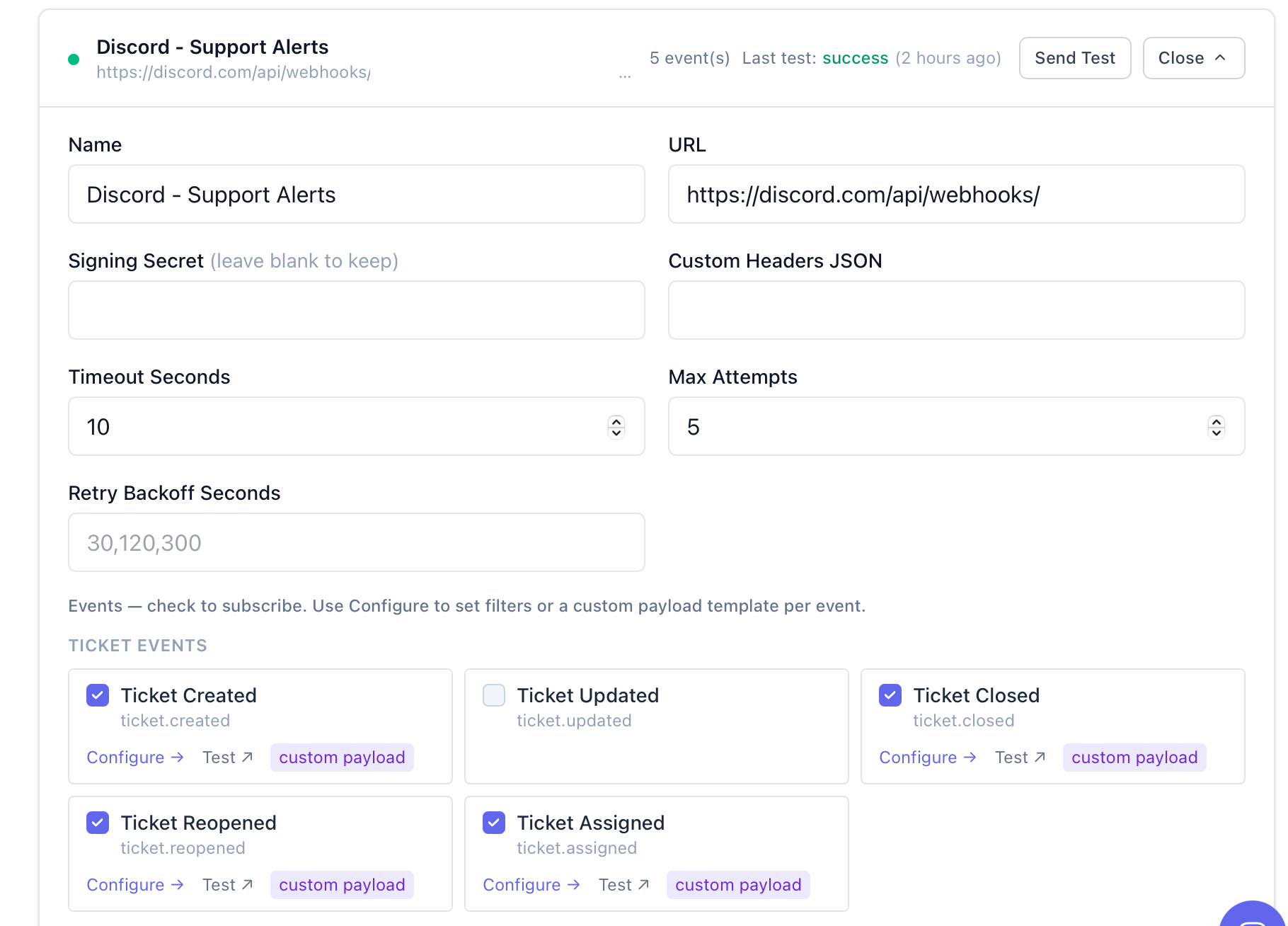
Select the events you want to receive notifications for, then click Save:
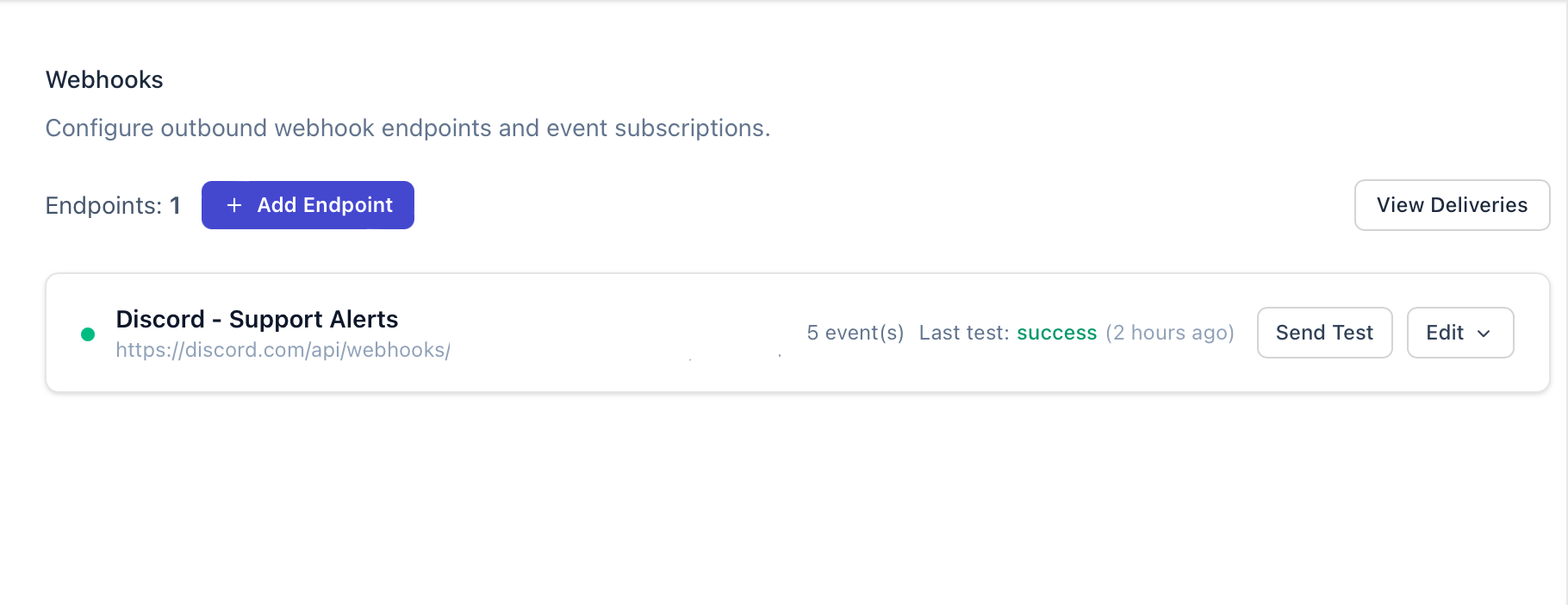
Then click Edit and configure the payload for each event type:
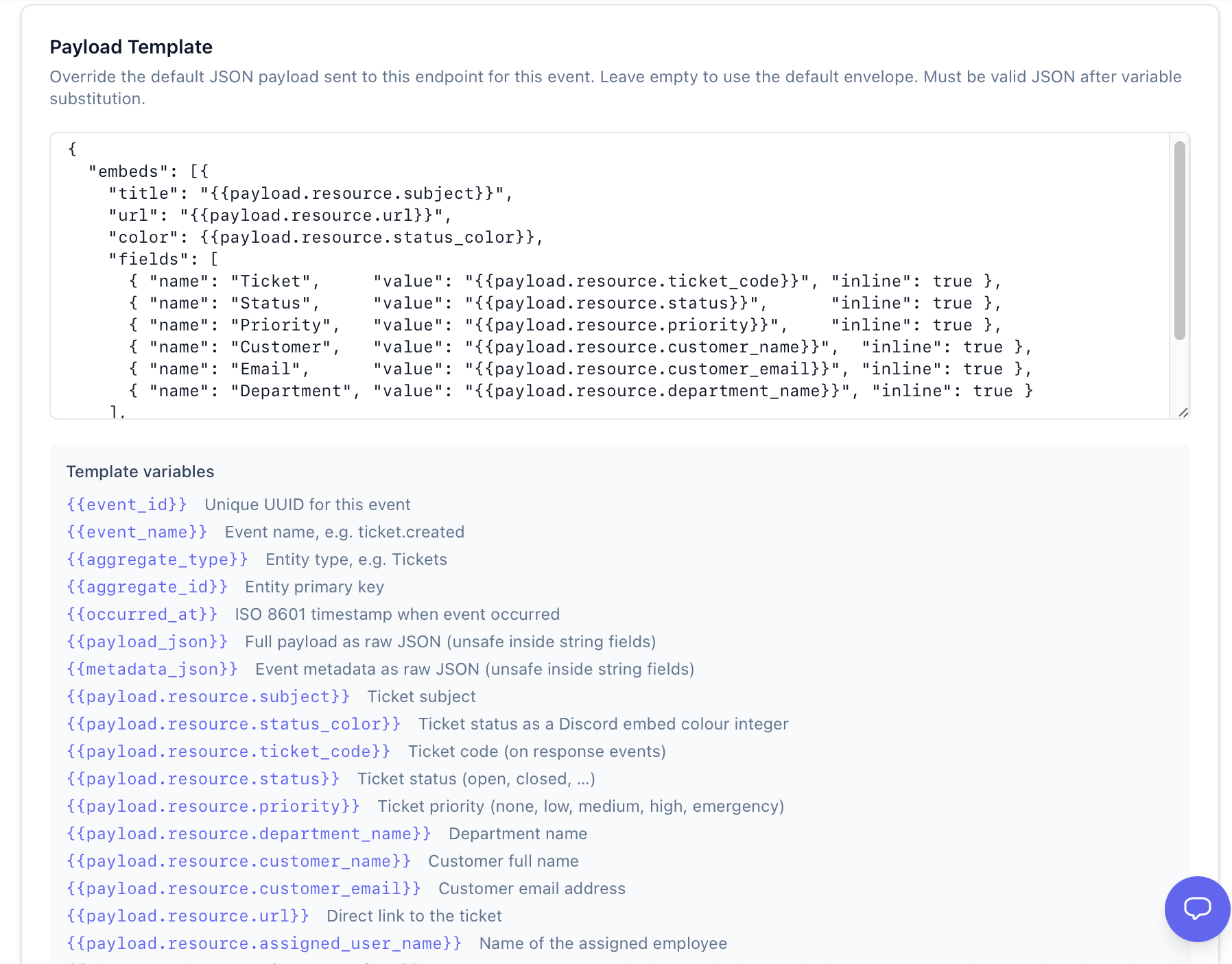
Use the following example payloads for each event type:
ticket.created / ticket.updated / ticket.closed / ticket.reopened
{
  "embeds": [{
    "title": "{{payload.resource.subject}}",
    "url": "{{payload.resource.url}}",
    "color": {{payload.resource.status_color}},
    "fields": [
      { "name": "Ticket",     "value": "{{payload.resource.ticket_code}}", "inline": true },
      { "name": "Status",     "value": "{{payload.resource.status}}",      "inline": true },
      { "name": "Priority",   "value": "{{payload.resource.priority}}",    "inline": true },
      { "name": "Customer",   "value": "{{payload.resource.customer_name}}",  "inline": true },
      { "name": "Email",      "value": "{{payload.resource.customer_email}}", "inline": true },
      { "name": "Department", "value": "{{payload.resource.department_name}}", "inline": true }
    ],
    "footer": { "text": "Ticaga Support • {{event_name}}" },
    "timestamp": "{{occurred_at}}"
  }]
}
tickets.assigned
{
  "embeds": [{
    "title": "{{payload.resource.subject}}",
    "url": "{{payload.resource.url}}",
    "color": {{payload.resource.status_color}},
    "fields": [
      { "name": "Ticket",      "value": "{{payload.resource.ticket_code}}",      "inline": true },
      { "name": "Status",      "value": "{{payload.resource.status}}",           "inline": true },
      { "name": "Priority",    "value": "{{payload.resource.priority}}",         "inline": true },
      { "name": "Customer",    "value": "{{payload.resource.customer_name}}",    "inline": true },
      { "name": "Assigned To", "value": "{{payload.resource.assigned_user_name}}", "inline": true },
      { "name": "Department",  "value": "{{payload.resource.department_name}}", "inline": true }
    ],
    "footer": { "text": "Ticaga Support • ticket.assigned" },
    "timestamp": "{{occurred_at}}"
  }]
}
replies.created
{
  "embeds": [{
    "title": "New reply on {{payload.resource.ticket_code}}: {{payload.resource.ticket_subject}}",
    "url": "{{payload.resource.ticket_url}}",
    "color": {{payload.resource.ticket_status_color}},
    "description": "{{payload.resource.content_preview}}",
    "fields": [
      { "name": "Agent",    "value": "{{payload.resource.agent_name}}",    "inline": true },
      { "name": "Customer", "value": "{{payload.resource.customer_name}}", "inline": true },
      { "name": "Status",   "value": "{{payload.resource.ticket_status}}", "inline": true }
    ],
    "footer": { "text": "Ticaga Support • response.created" },
    "timestamp": "{{occurred_at}}"
  }]
}
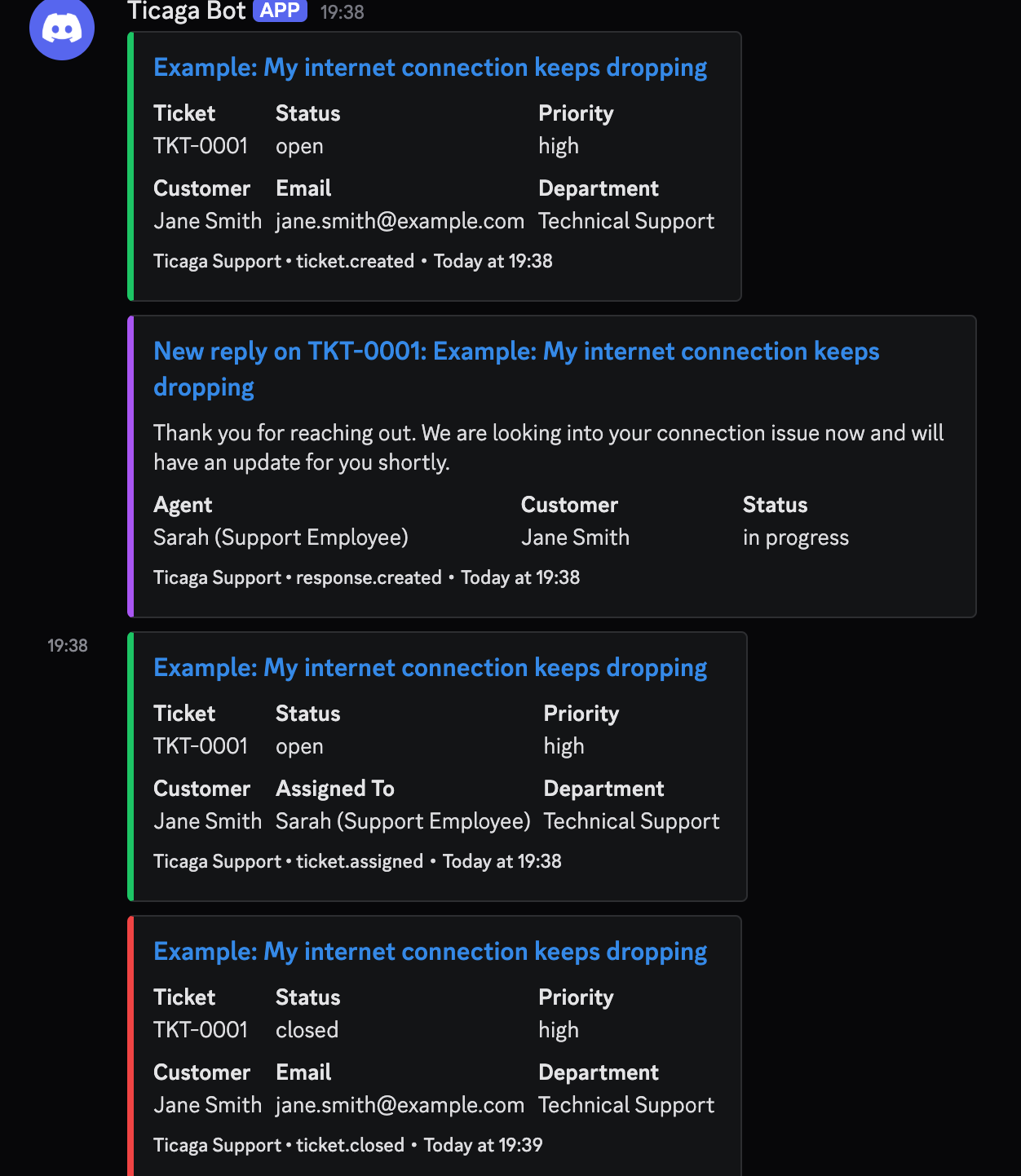
Once configured, updates will appear in Discord like this:

Author
Michael Dance
My name is Michael and I'm the Owner and founder of Ticaga Ltd.
Feedback loop
Be the first to rate this guide.
Article snapshot
To get started, go to Administration → General Settings → Webhooks, then click Config Slack : Follow the instructions on the modal: After c...
Error: > Enable SSL in DirectAdmin, then reload this installer over https:// Find the SSL Certificates option on DirectAdmin: Click on:...
Email piping lets InterWorx send incoming email directly into Ticaga, where it can be converted into tickets for the correct department. InterWorx use...