

Go to your personal settings > 2FA Settings > Enter your password.
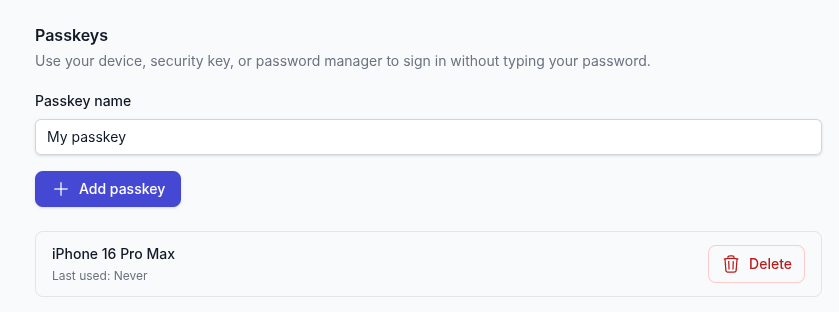
You'll then see the passkey section, set a name and click "Add passkey".
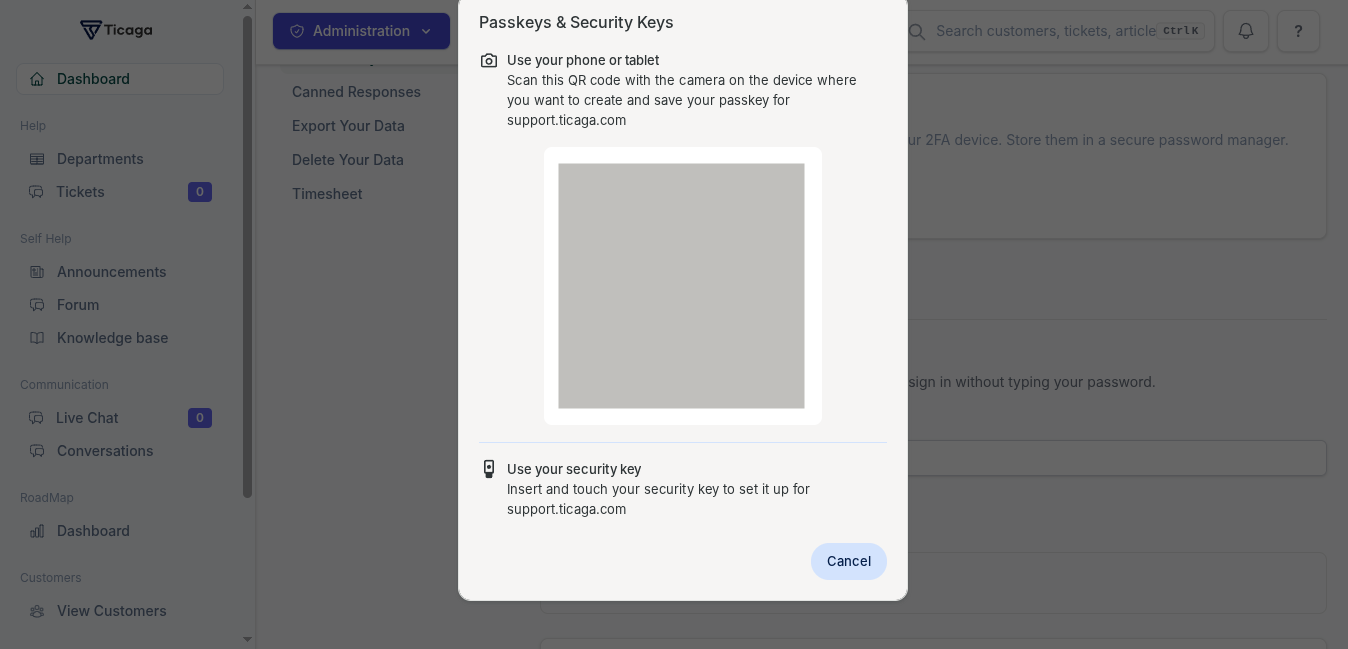
Scan the QR code with your phone or insert your yubikey into the USB port.
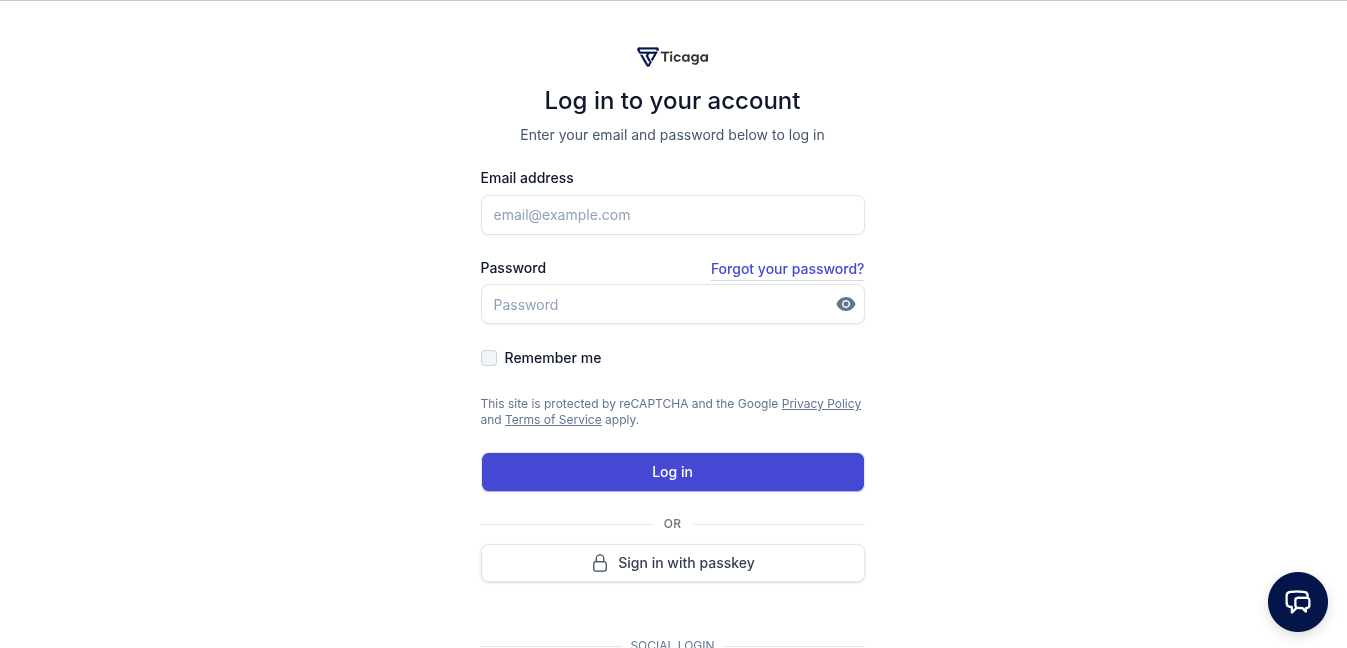
On the login page click on Sign in with passkey button:
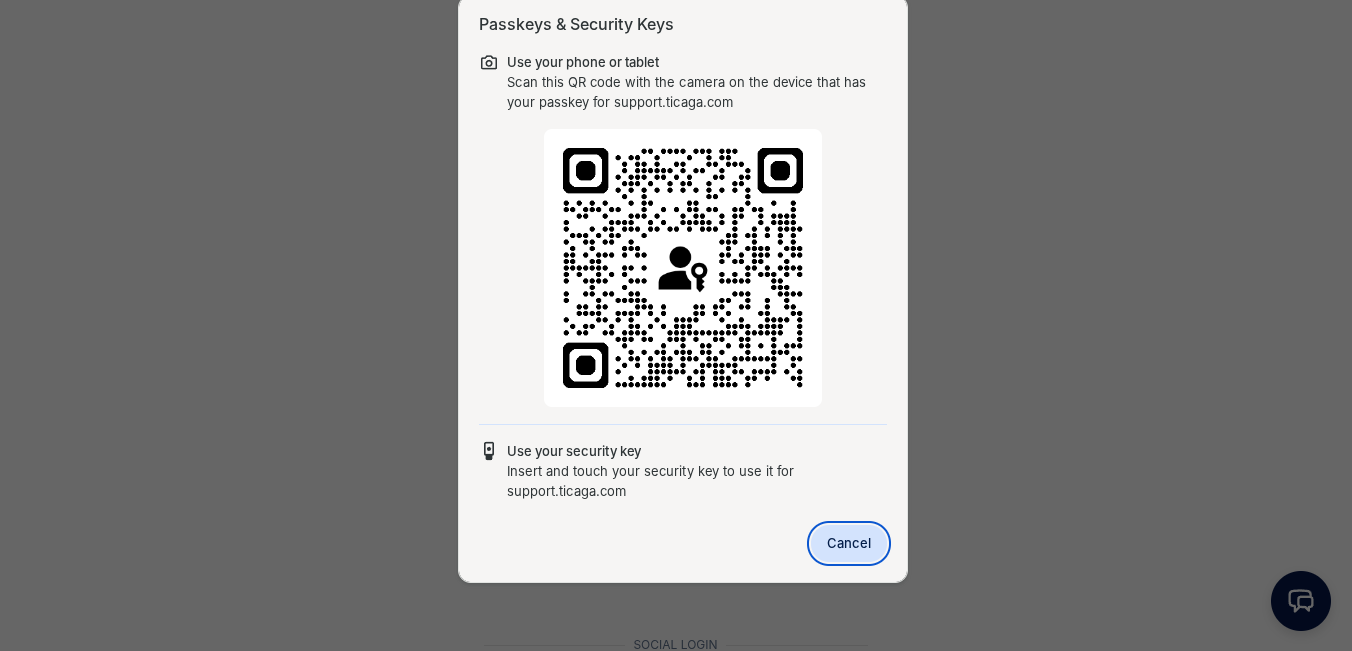
Scan the QR code or insert the Yubikey:
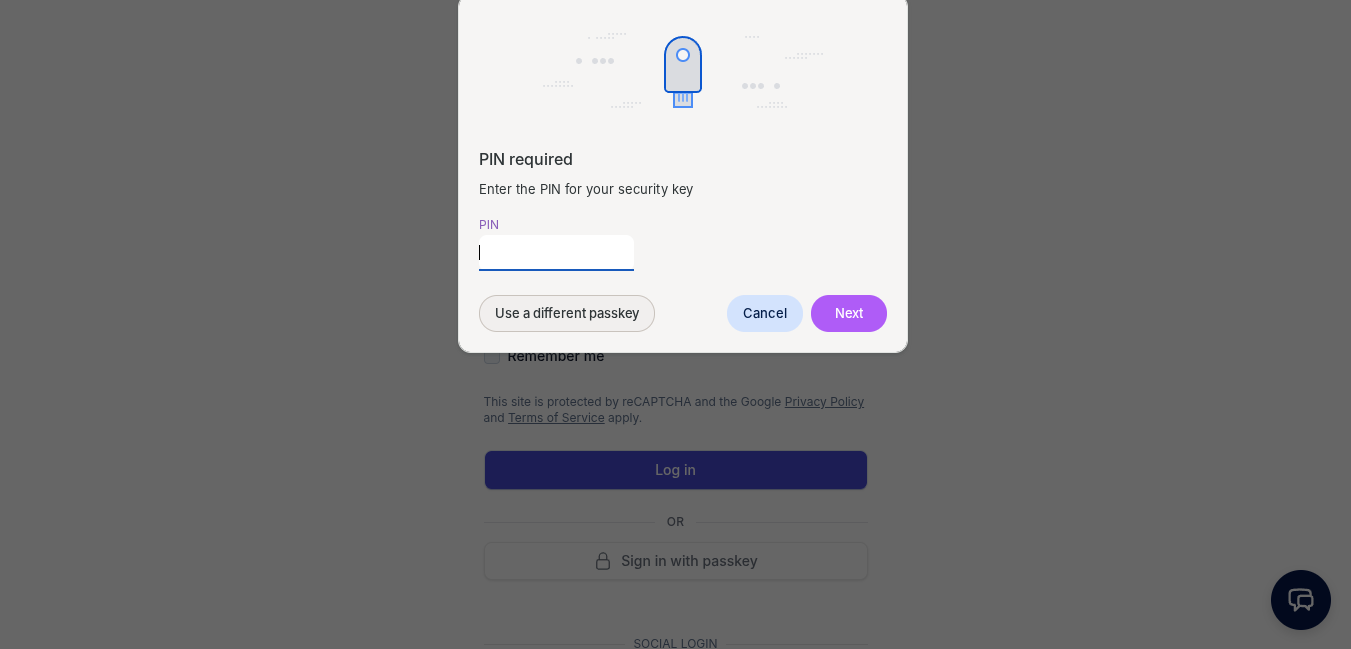
Enter the pin for your Yubikey (Skip this step for phone or computer):
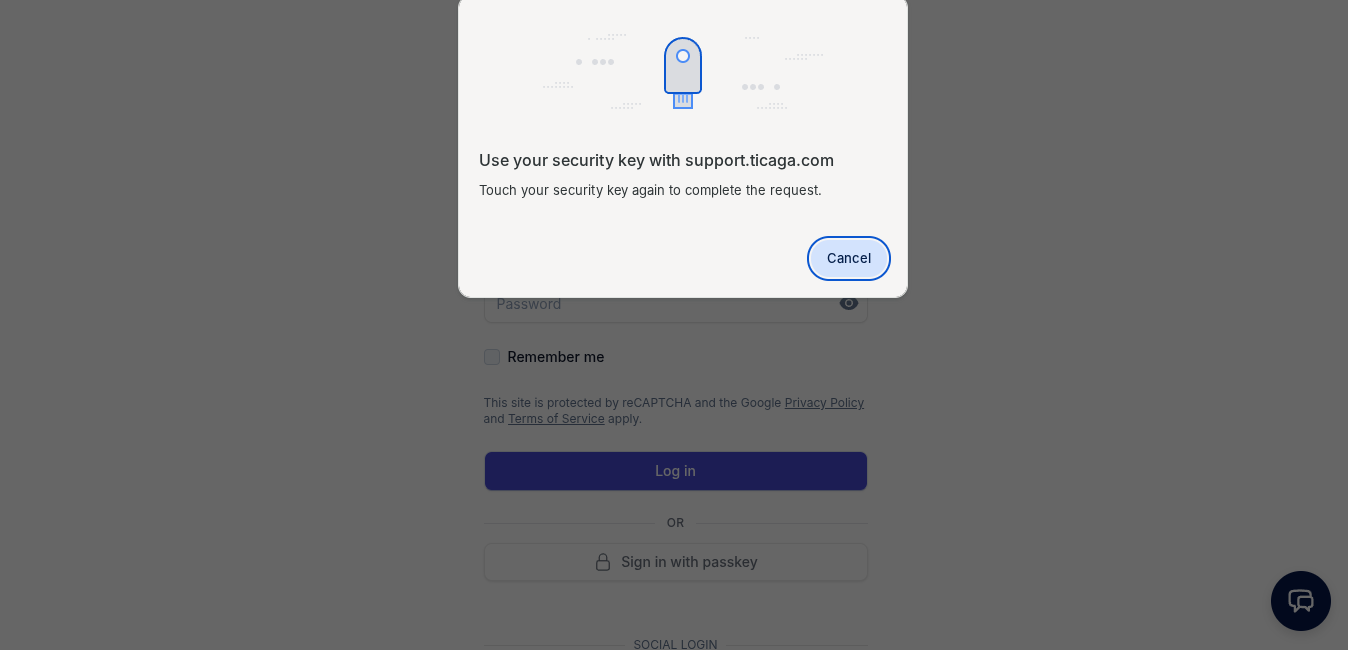
Touch your Yubikey:
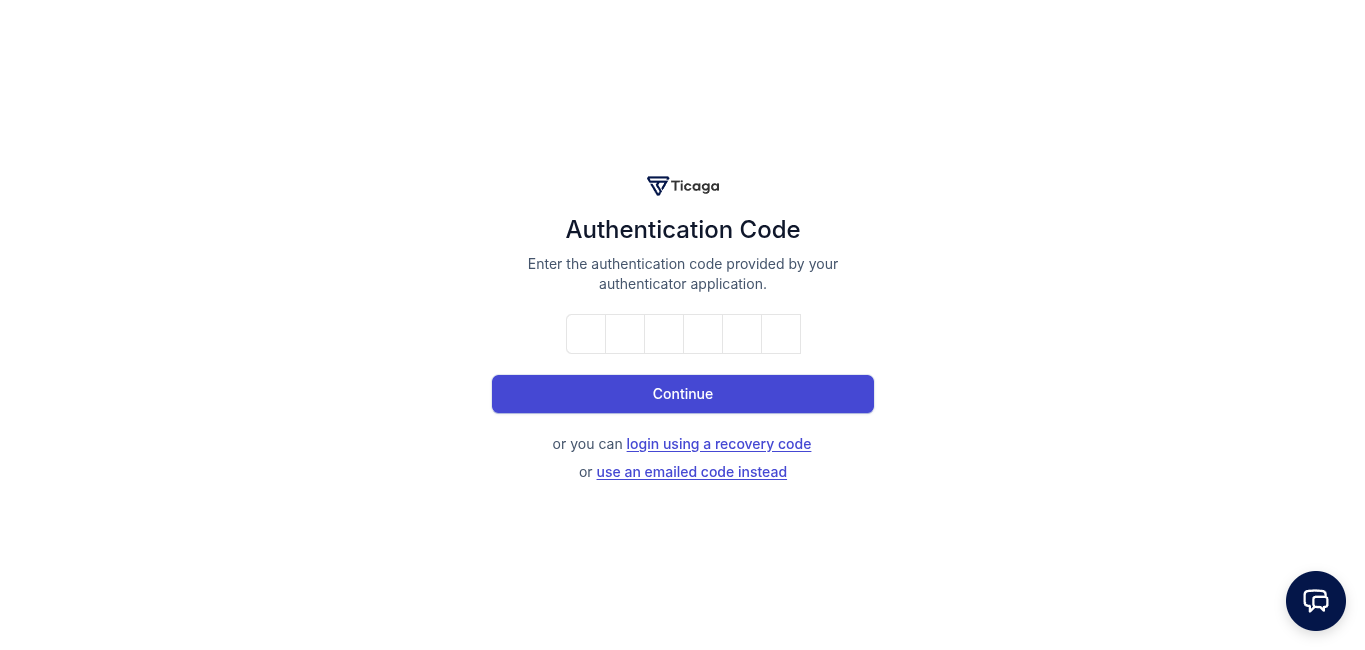
Now you can either see your dashboard or the two factor Authentication page:
Then you're inside, secure and no passwords.

Author
Michael Dance
My name is Michael and I'm the Owner and founder of Ticaga Ltd.
Feedback loop
Be the first to rate this guide.
Article snapshot
You can automatically close tickets that have been waiting for a customer response for more than two days by configuring the relevant department. O...
Email piping lets InterWorx send incoming email directly into Ticaga, where it can be converted into tickets for the correct department. InterWorx use...
This guide explains how to deploy a new Ticaga installation with Docker Compose. The supplied deployment runs the web application, background worker,...